How to Use Image Search on Kakobuy Spreadsheet
Improve visual-search results by preparing a clean product crop, understanding similarity matches and refining the results with filters.
Published August 5, 2026 · Updated August 5, 2026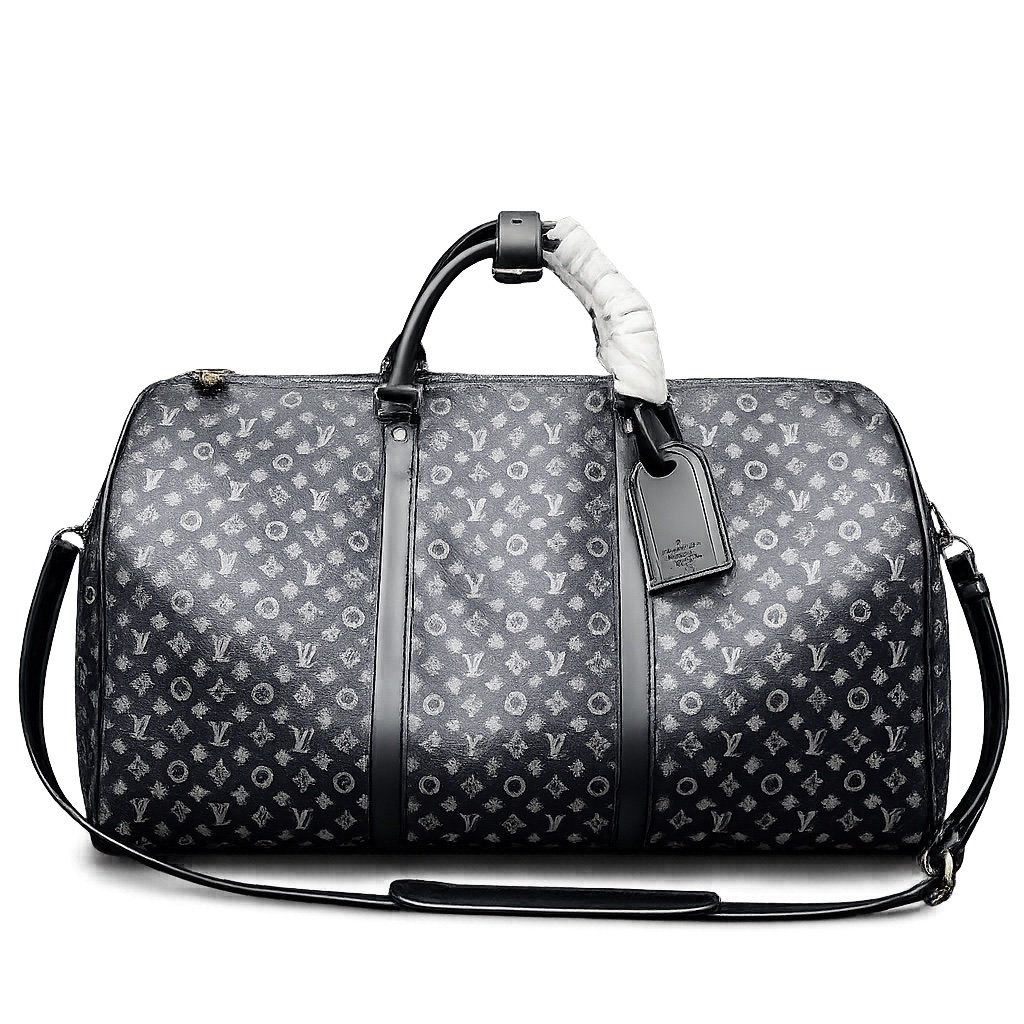
Image search is useful when you recognize a product but do not know the best English search words. The feature searches products indexed inside Kakobuy Spreadsheet; it is not a general web image search and it cannot guarantee an exact model match.
Prepare a clean reference image
The strongest input usually has one product filling most of the frame. Before uploading:
- crop away browser controls and chat interfaces
- remove large text areas when possible
- avoid collages containing several products
- keep the full shape of the item visible
- use a sharp image with normal lighting
- prefer a plain or simple background
For shoes, include the side profile. For bags, keep the whole bag and strap visible. For clothing, a flat or front-facing view is often easier to compare than a distant lifestyle photo.
Open image search from the main search area
Select the image-search action and upload your reference. The website creates a visual signature and compares it with the product images already indexed in the catalog. The returned order represents similarity, not a verified identity.
Because the system searches the site catalog only, a product that has not been indexed cannot appear in the results.
Judge the first results visually
Compare shape, color blocking, silhouette and major details. Do not rely only on the first card. Open several candidates and check the complete gallery when available.
Useful comparison points include:
- overall shape and proportions
- panel layout and color placement
- closures, straps, pockets or sole design
- printed or embroidered details
- product type and category
Small logos or text may be difficult to match, especially in compressed screenshots.
Refine with category and brand filters
If a reference shoe produces clothing or accessory results, select Shoes after the search. If you know the label, apply the brand filter or open the relevant brand page.
A good recovery sequence is:
- crop the image more tightly
- upload the improved crop
- select the correct category
- apply a likely brand or product type
- compare the top candidates manually
Why image search can return the wrong product
Visual similarity systems can overvalue background color, pose or overall shape. Two unrelated black products on a white background may look mathematically similar. Results also depend on the quality and number of images stored for each product.
If image search is not useful, switch to keyword search. Describe the object, color and style in a short phrase, such as red low-top sneaker or black quilted shoulder bag.
Confirm before proceeding
Image search is a discovery shortcut, not product verification. After finding a candidate, use the photo-checking guide, confirm the live seller page and compare the exact options available through your shopping agent.
FAQ
What image works best for visual search?
Use a clear crop where one product fills most of the frame and the background is simple.
Does image search check the whole internet?
No. It compares the uploaded image only with products already indexed in this website's catalog.
What should I do if the result is wrong?
Crop away text and background objects, upload a clearer angle, or use category and brand filters after the search.